
Features
What actually changes on the floor
From the moment a guest picks up the tablet to the last receipt of the night — here is what each product does, in detail.
01Diner Experience
A tablet kiosk menu with nothing to install
The pad you hand a table, in place of the paper menu, is both the menu and the order pad. Guests take their time with photos and descriptions, decide on their own, and the order reaches the kitchen and the floor the second they tap.
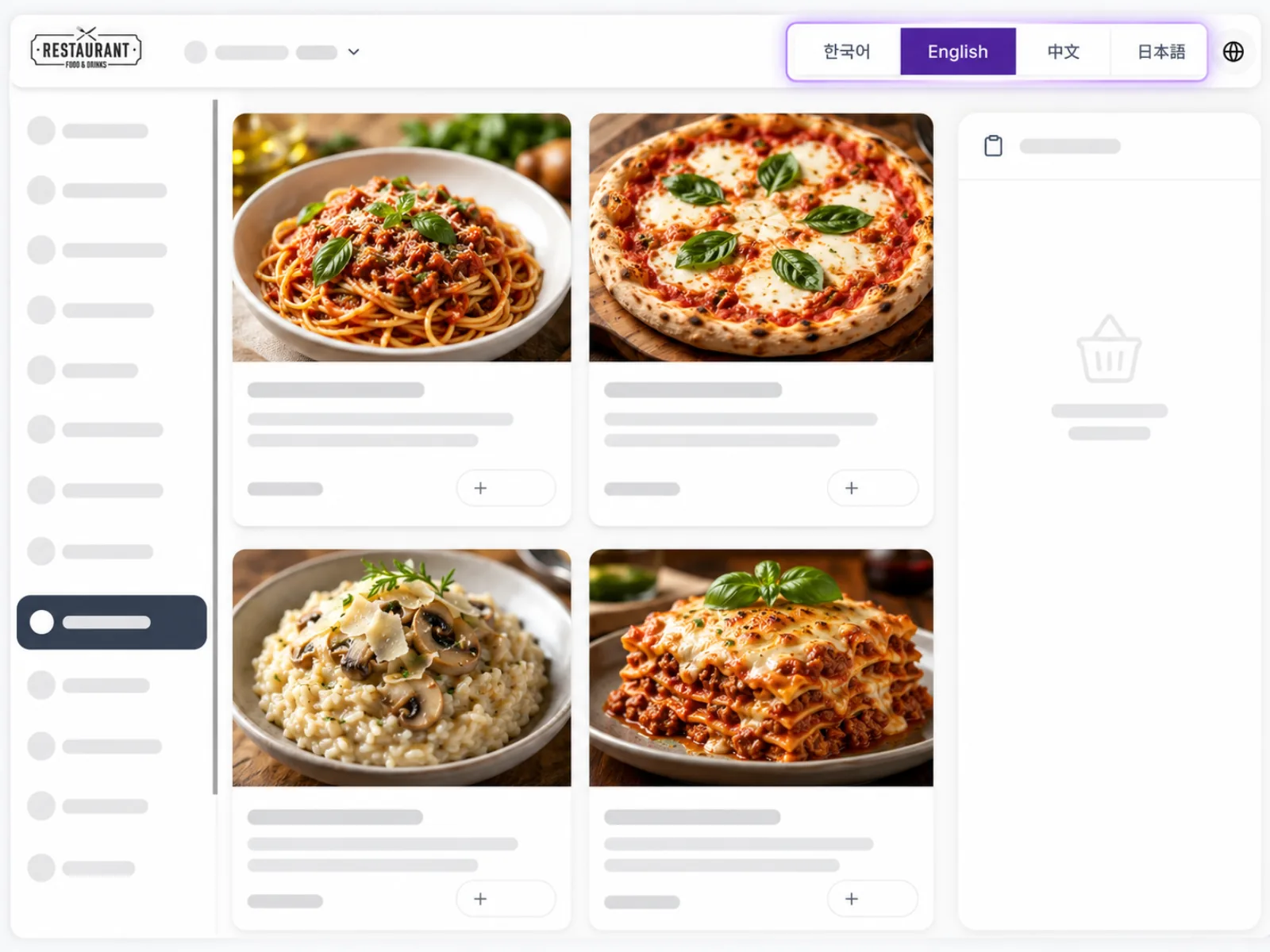
Guests read the menu in their own language
One tap at the top of the screen and everything switches — dish names, descriptions, options, tags. Korean, English, Chinese and Japanese are built in, with French and Farsi available too, and each restaurant chooses which languages to show.
- Names, descriptions and options are all translated
- You pick which languages appear on your tablets
- No staff member has to translate or explain to take an order
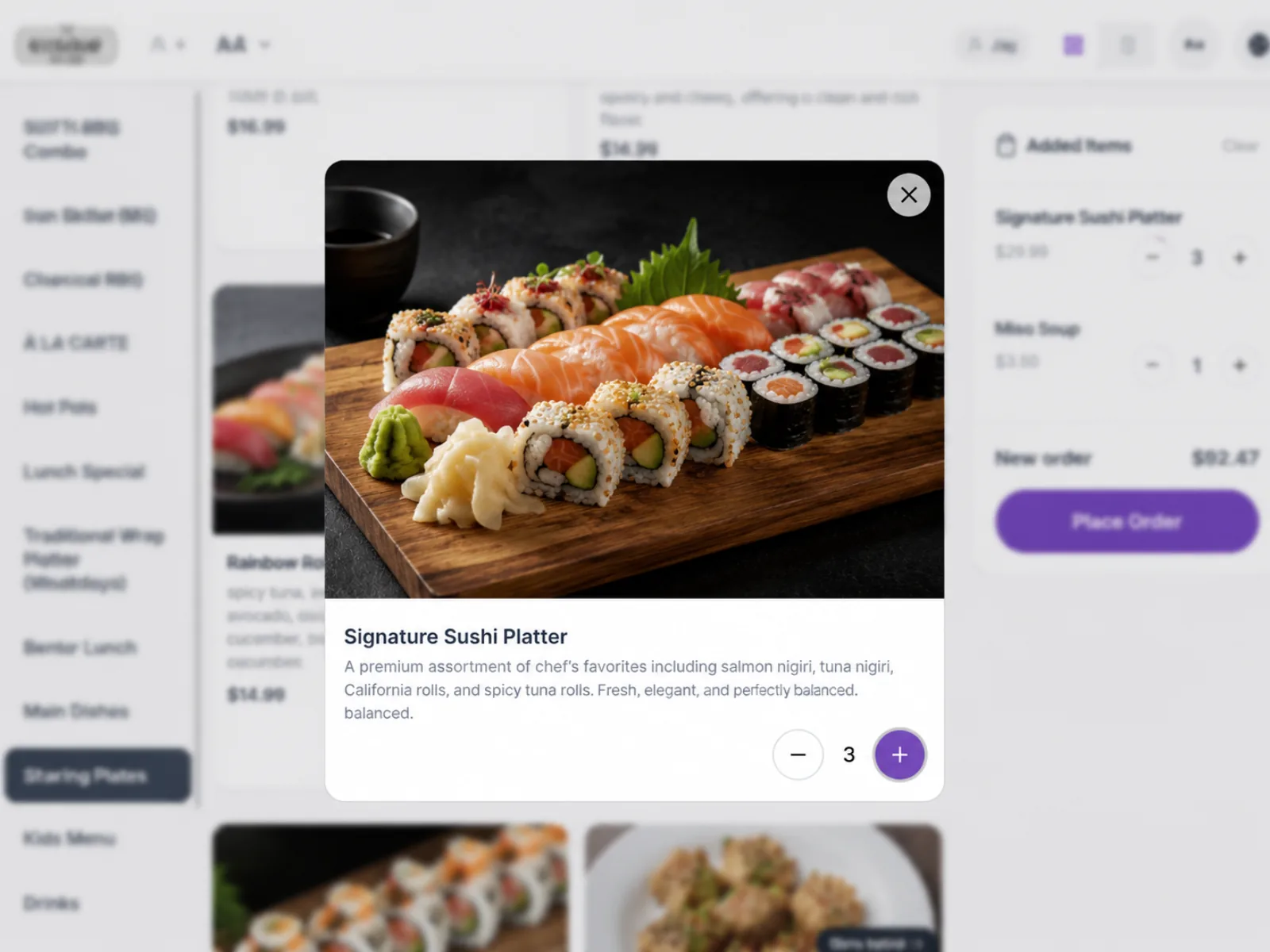
First-time guests never get lost
Categories on the left, photo cards in the middle, the running order on the right — the whole flow lives on one screen. Tapping a dish opens a large photo with its description and tags such as spice level, vegetarian or popular, and the guest just sets the quantity.
- Photo cards grouped by category, easy to scan
- Descriptions, tags and options on the detail view
- What's been added and the total stay visible at all times
Prices and menus change instantly
Edit a price or pull a dish in Admin and every tablet reflects it right away. No reprinting menus, no stickers over old prices.
Sold out means sold out
Mark an item sold out and the tablets stop accepting it. The awkward moment of taking an order and coming back to say no is gone.
Orders reach the POS and the floor live
The moment a guest places an order it appears on the server's screen and prints in the kitchen. Nothing is written down, retyped or lost along the way.
Options and requests carry through
Doneness, spice level, side choices and per-item notes print exactly as the guest set them, on both the order and the kitchen ticket.
Recommendations that lift the check
Before the order is sent, the tablet suggests sides and drinks that go with what's in the cart. Check size grows without anyone having to upsell.
The table's running bill, on the table
Guests can see what they've already ordered and what it adds up to, right on the tablet — so they ask far less often before paying.
02Diner Experience
Waitlist
A tablet by the door takes the waitlist for you. Guests see how many parties are ahead of them and add their own name; staff just call the next one when a table opens.
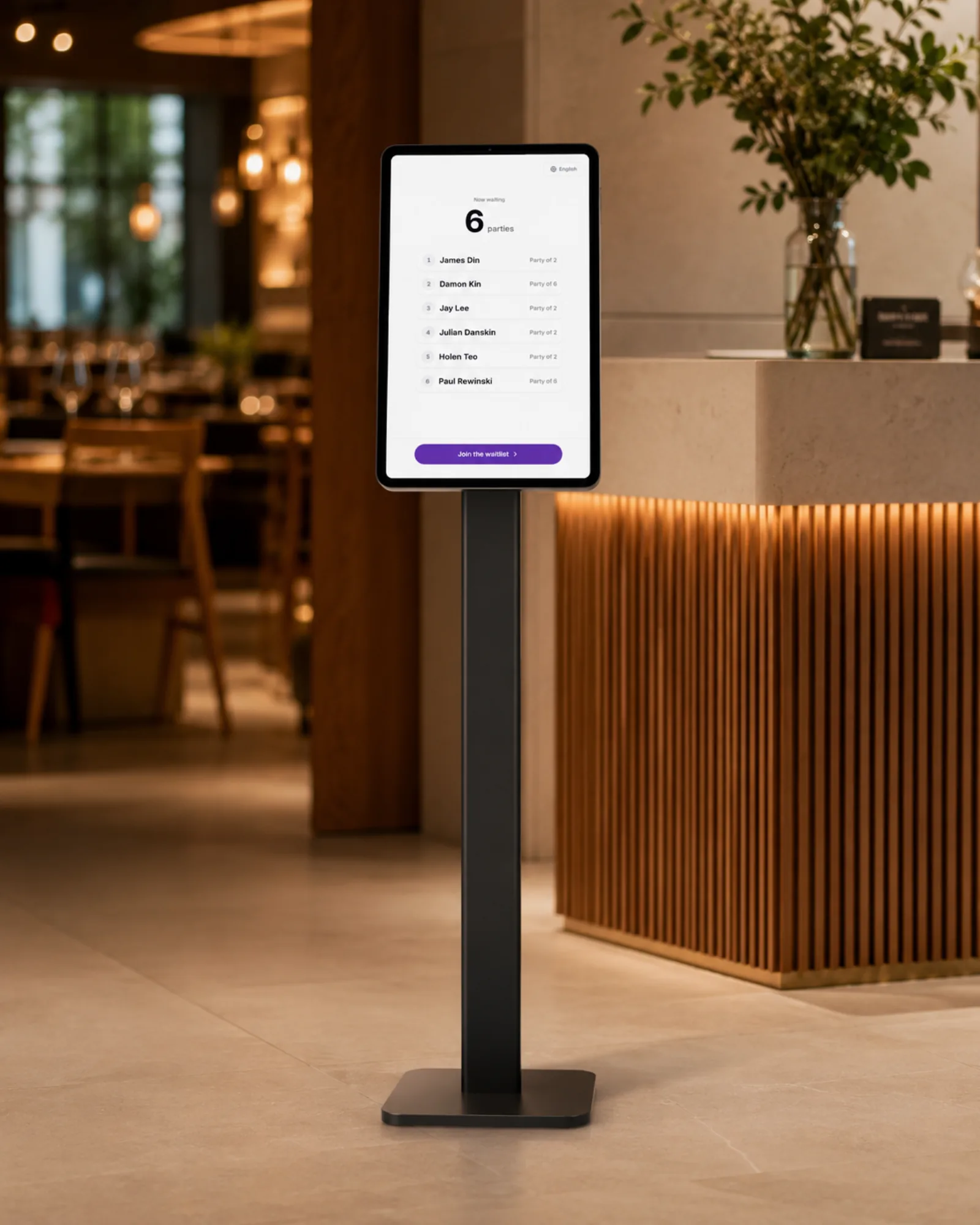
No line — just leave your name
The stand at the entrance shows how many parties are waiting and in what order. A guest taps "join the waitlist", enters a name, party size and phone number, and the list refreshes every few seconds so they can watch their turn come up.
- The current wait, visible at a glance
- Name, party size and phone — that's the whole form
- Once registered, guests see their own place in the list
Nobody has to man the door
No staff member standing at the entrance writing names down during the rush. Guests add themselves, and the team just calls the next party when a table frees up.
Managed from the floor screen
The moment a guest signs up, the party appears on the waitlist in the Server Dashboard and the POS. Seating and removing them happens right there.
Phone numbers stay with staff
The entrance screen shows names and party sizes only — never phone numbers. Staff see the contact on their own screen and call when the table is ready.
Built for a shared screen
After signing up, the screen returns to the plain waiting list on its own. Even if a guest walks away mid-flow, the next one finds a clean screen.
In the guest's language here too
The waitlist screen switches languages just like the menu does, so a first-time guest never has to guess which button to press.
Alongside reservations
Phone and walk-in reservations sit next to waiting parties on the same screen, and seating records which one the guest came from.
03Floor Operations
POS & Server Dashboard
The whole floor on one screen. Table cards sit in your restaurant's own layout and say their status in colour, while the left rail pushes the tables that need someone right now to the top. From taking the order to splitting the cheque, it all finishes on the same screen — the control tower for the floor.
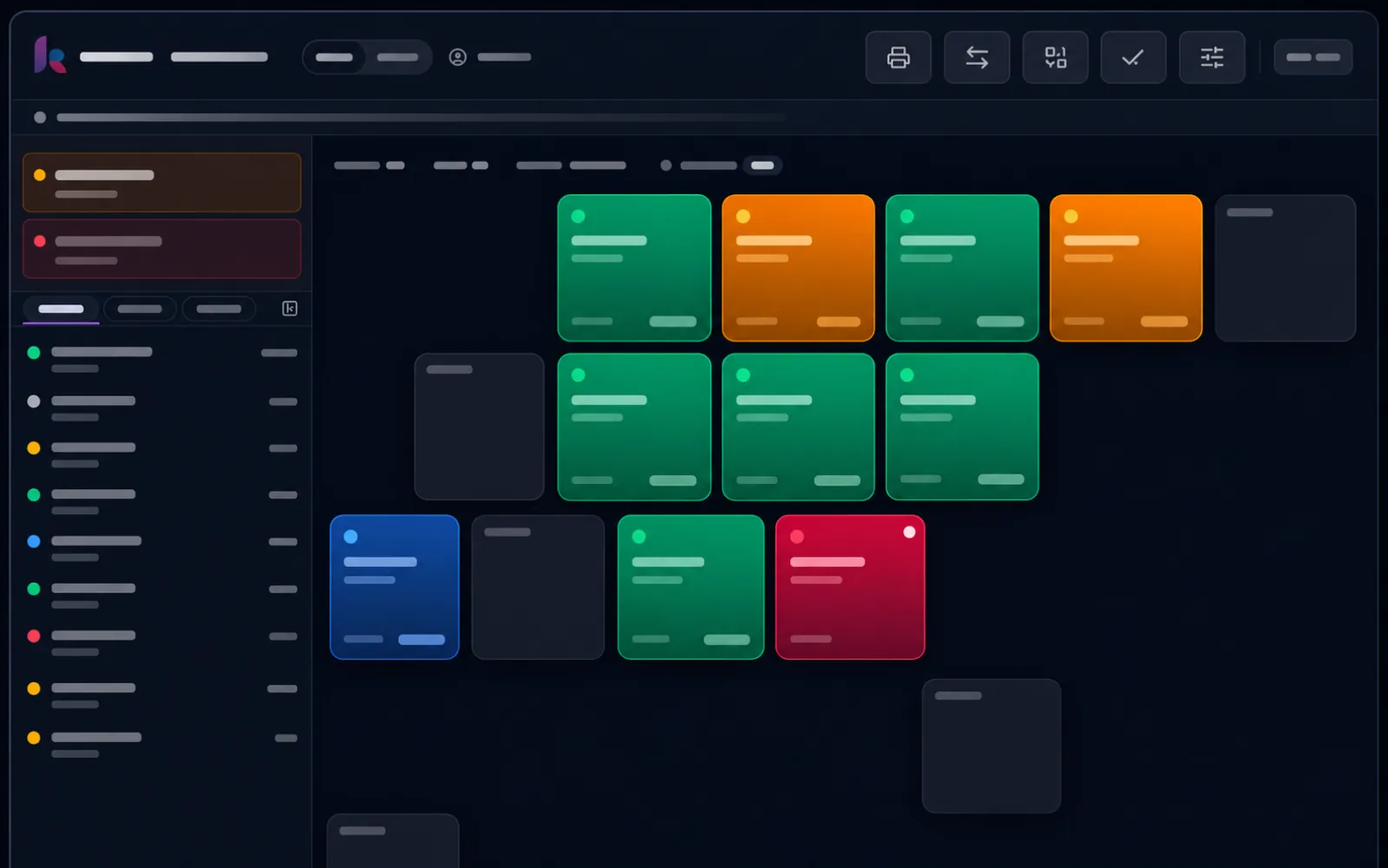
Read the room by colour
Table cards are laid out on a grid built to match your floor plan. Amber means seated and still choosing, red means a guest order is in and nobody has confirmed it yet, green means ordered and eating, blue means the bill is up and they're waiting to pay, grey means empty. Reserved and already-paid tables get their own colours too.
- A table grid built to match your floor plan
- One colour tells you seated, ordering, eating or paying
- Party size, elapsed time and the balance due on every card
It tells you which table to go to first
The alert rail on the left only lists tables that need someone now. A requested bill shows up immediately; a guest order left unconfirmed for ten minutes, or a party seated for thirty without ordering, follows. However busy the floor gets, nothing slips out of order.
- Bill requests surface the moment they come in
- Unconfirmed orders at 10 minutes, seated-but-not-ordered at 30
- Tap an alert and that table opens right away
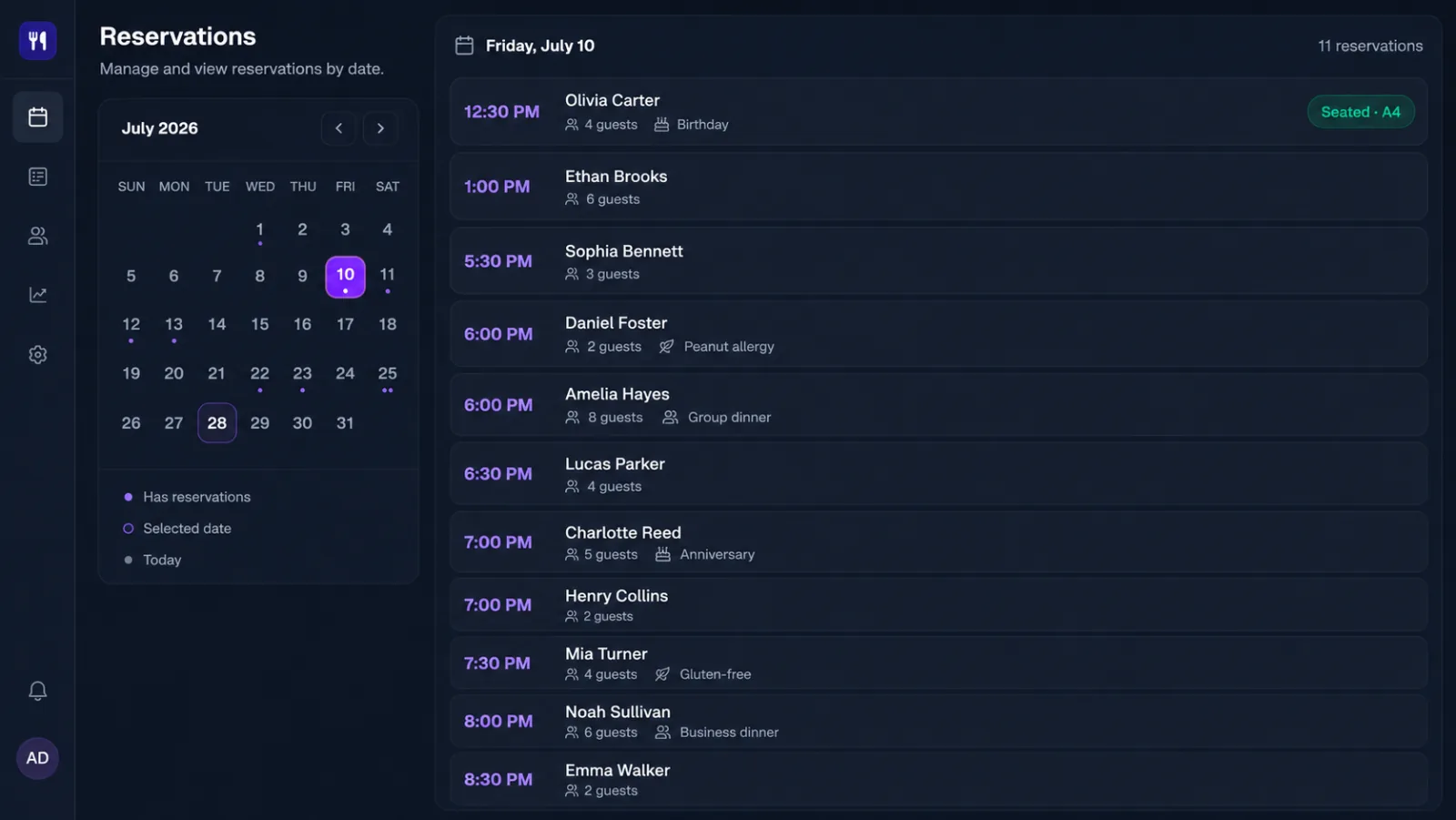
Take the booking now, seat it in one tap later
Days with bookings are dotted on the calendar, and tapping a date lays out that day's reservations in time order — name, party size, phone, plus notes like a birthday or a peanut allergy. When the guests arrive, hit "seat" next to the booking and tap any free table; that's the whole handover.
- Every date's bookings, straight off the calendar
- Party size, phone and special requests on one entry
- Hit seat, tap a free table, and the party is seated
Split the cheque however they want to
Pick by person or by item. By person divides the total across however many are paying; by item lets you assign each dish to whoever is covering it. Each split takes its own card or cash, and whatever is still unpaid stays on the table — so who paid and how much is left is never in question.
- Even splits across any number of people
- Item splits, with each dish assigned to a payer
- A payment method and a receipt per split
Handle it from the card
Tap a table and its orders open. Confirming an incoming order, adding or editing items, taking payment — all without leaving the screen.
Every device sees the same floor
The tablets on the floor and the POS at the counter share one live view. What one device handles shows up on the others right away.
Moves and merges
Move a party to another table or merge two tables and the orders and totals follow. No rewriting anything by hand.
Waiting parties seat the same way
Parties who signed up at the door drop straight onto a table from the side panel, and the guest's name stays on the card so nobody has to ask again.
Sorted by how long they've been sitting
Active tables are ranked by elapsed time, so the ones slowing your turnover are the first thing you see.
Confirmed orders go to the kitchen
The moment staff confirms an order, the ticket prints in the kitchen. Edits and voids reprint too, so the kitchen and the floor never drift apart.
Each dish knows its own station
Set which printer every menu item goes to. The kitchen, the bar and the grill each get only their own tickets — no more carrying slips across the restaurant.
Dine-in and pick-up, kept apart
Takeout and pick-up orders are tracked separately by number, guest name and pick-up time. A seated guest adding takeout has it join their table's cheque, while walk-in pick-ups stay on their own track.
Receipts you can find again
Look up a past receipt by date or number and reprint it. Refunds ask for the staff member's PIN again, so the record shows who handled it.
04Close & Settlement
Day Close
Put in the starting cash when you open, and close the day out on one screen when you're done. Sales are counted from the receipts you actually issued, so what came in as cash and what came in on card reconcile right there.
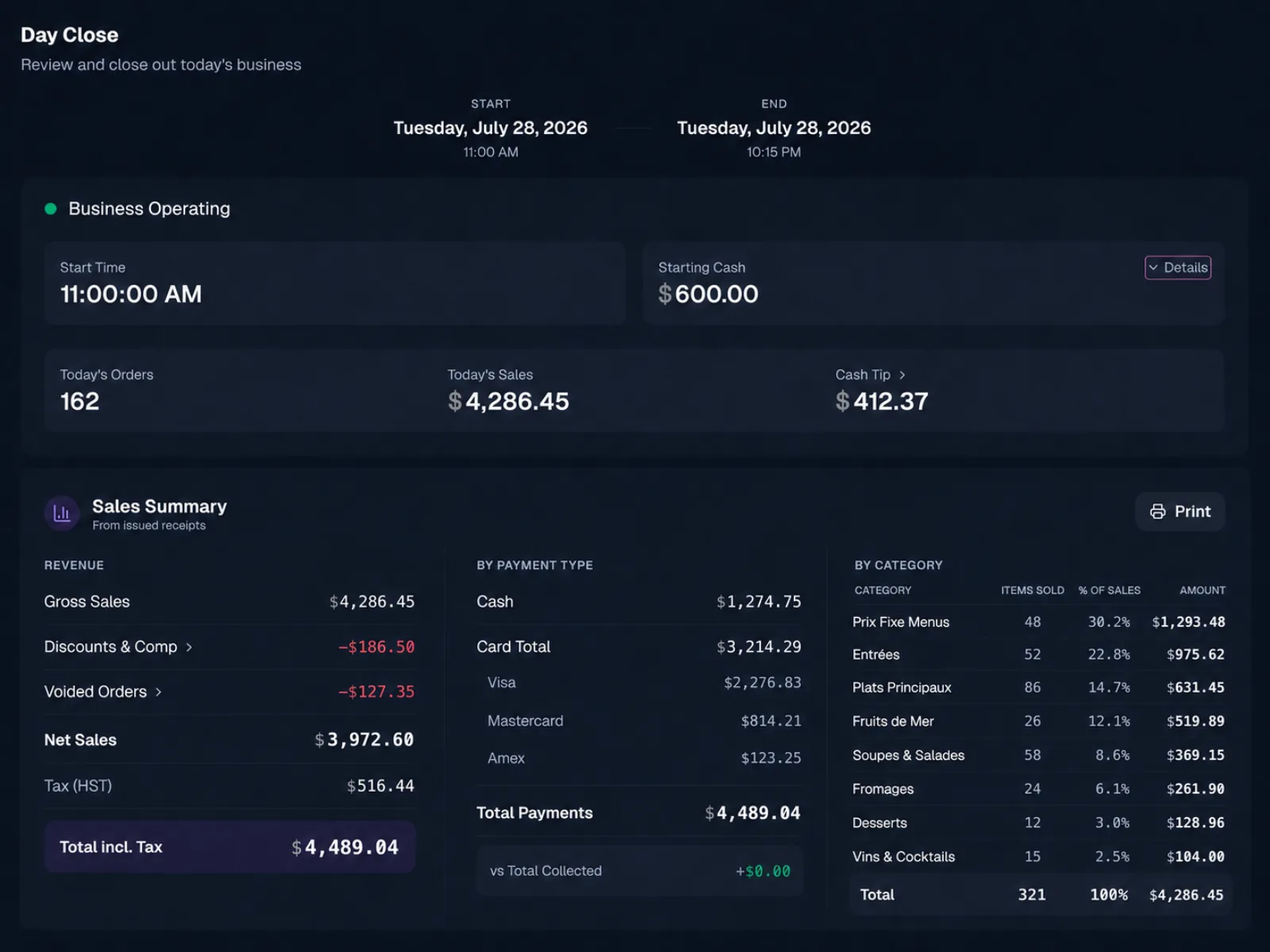
The day, on a single sheet
Gross sales minus discounts and voids gives net sales, then HST and the final total. Payments break down into cash and card (Visa, Mastercard, Amex) and are checked against what was actually collected, with items sold and share of sales per category alongside. Tap the discount or void figure to see exactly which orders they came from.
- Gross → discounts and voids → net → tax, in one line of sight
- Cash and card takings checked against the collected total
- Items sold and share of sales by category
Counted from issued receipts
Revenue comes off the receipts that were actually issued, with HST broken out — numbers you can hand to an accountant as they are.
Cash tips reconciled too
Card tips are captured with the payment; cash tips get added at close, so the day's tip total actually balances.
Print the summary and keep it
Print the finished summary on the spot. Every day's close is kept, so you can look back over any stretch of time later.
05Owner Strategy
Operations Admin
Menus and prices, who on your team can do what, every store setting — it's all decided here. And everything that happens on the floor comes back as numbers, so what sells and what doesn't stops being a hunch.
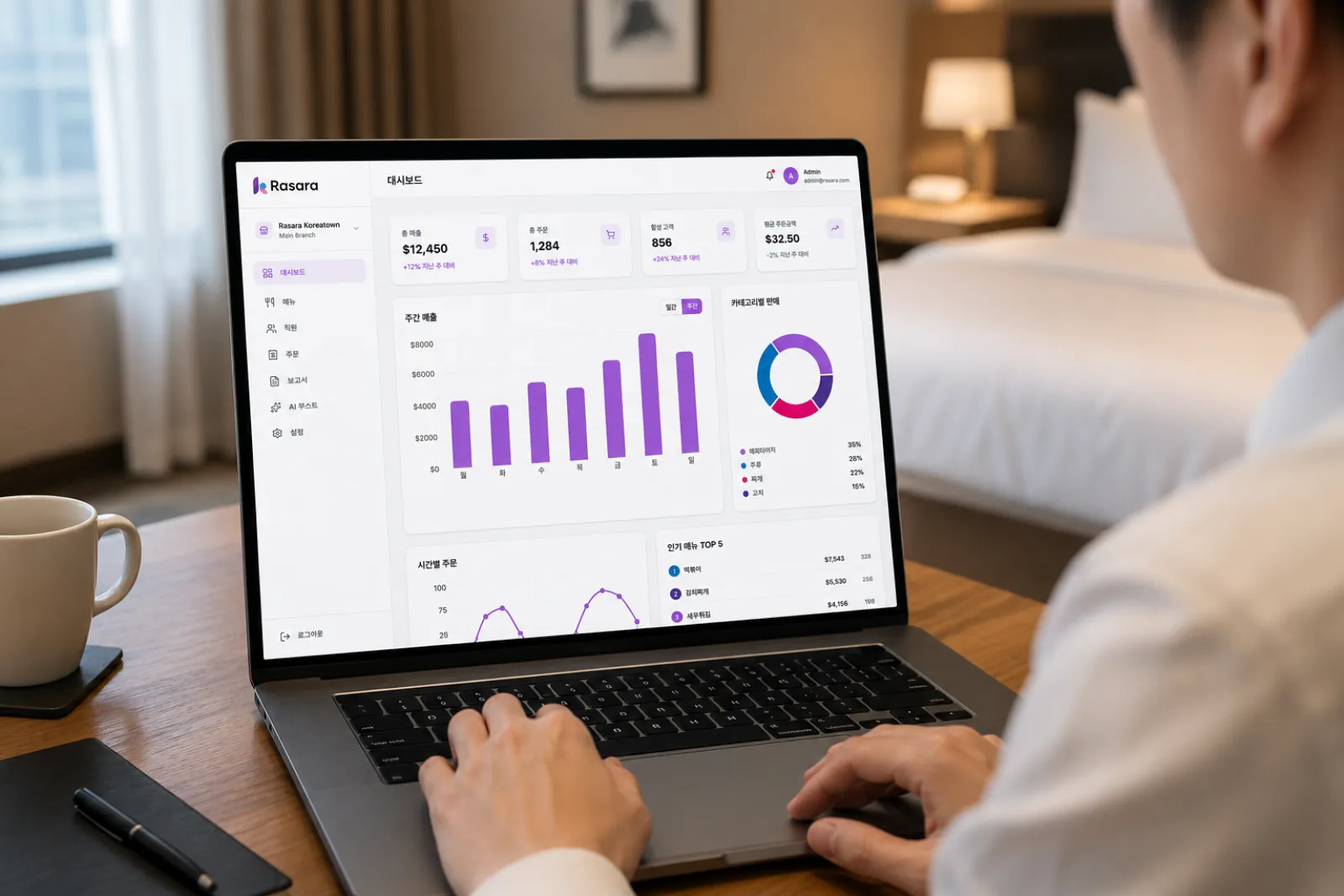
Today's restaurant, on one screen
Revenue, order count and average check lead with how far they've moved since last week. Then sales by day, orders by hour, category share and the top five items — enough to read the state of the restaurant over a morning coffee.
- Revenue, orders and average check against last week
- Busy periods, by day of week and hour of day
- Category share and the top-selling items
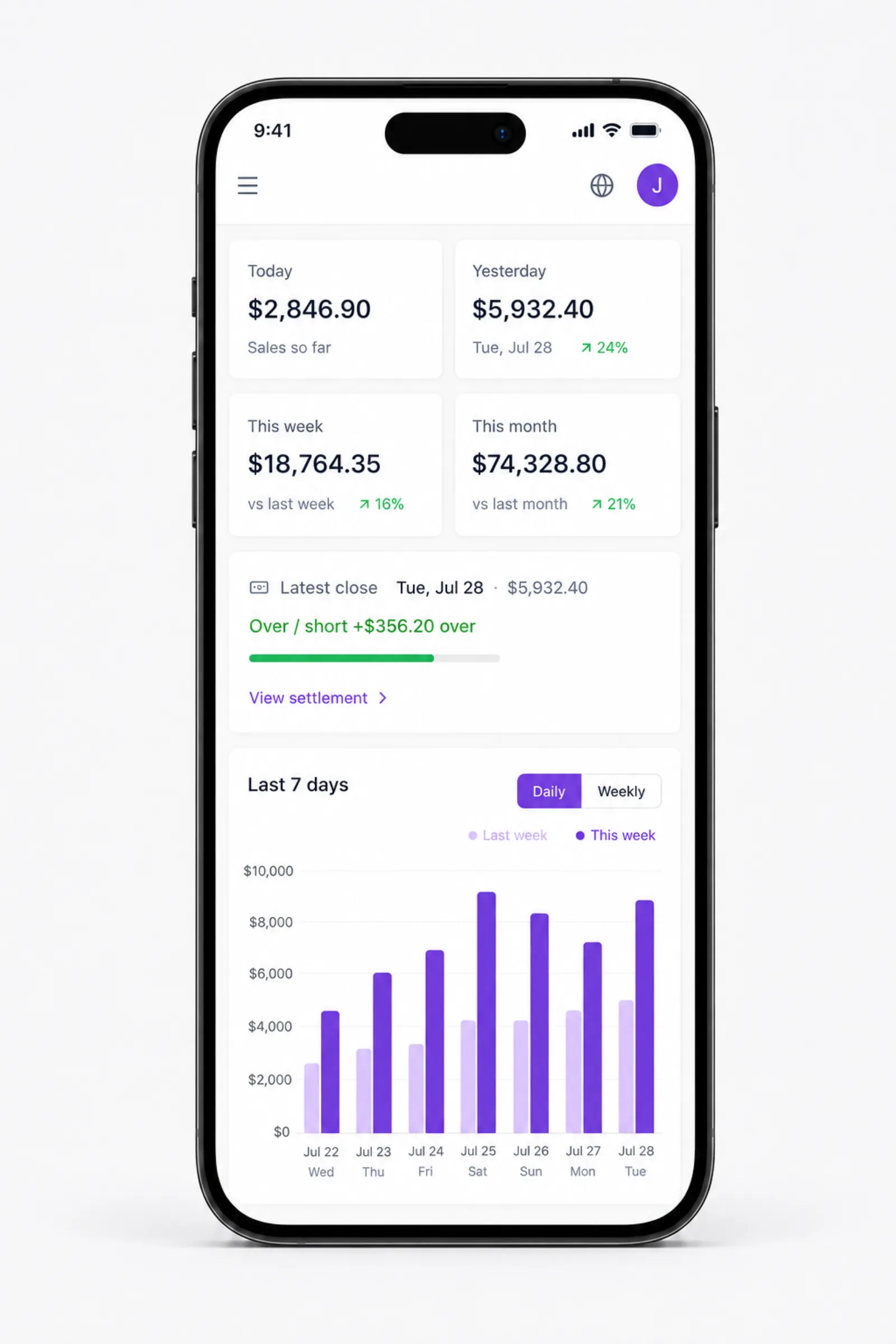
And from wherever you happen to be
Today's takings so far, yesterday, this week and this month — each against the period before it, on your phone. Last night's close, its over/short and the settlement behind it follow, and the same address shows you which tables are occupied right now. You don't have to be in the room to know how the day is going.
- Today, yesterday, this week and this month at a glance
- Compared to last week and last month automatically
- Close, settlement and live table status, all on the phone
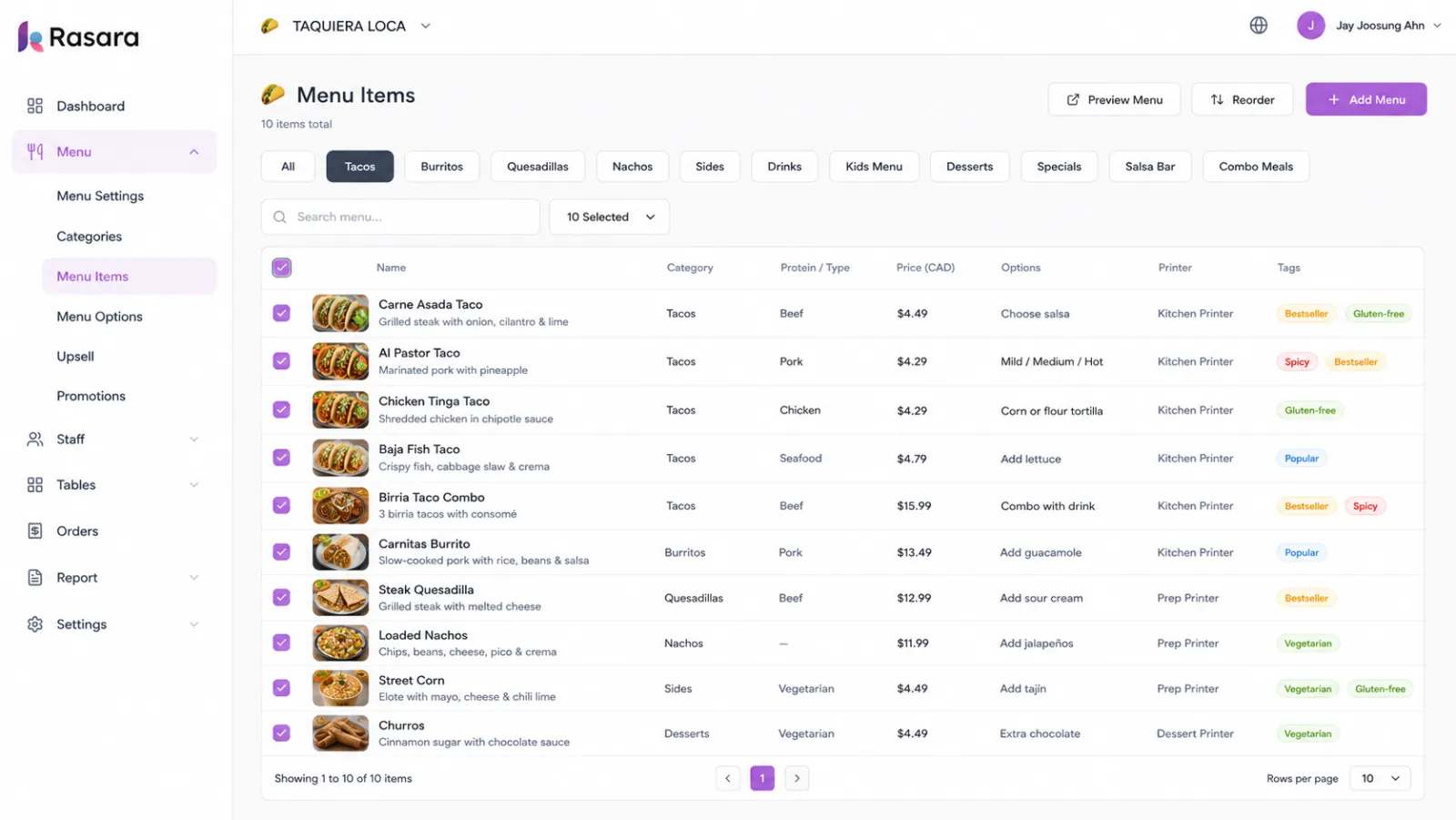
The whole menu changes from one table
Filter by category tab and every item shows its photo, description, price, options, destination printer and tags on a single row. Select several at once to change them together, and set the order they appear in right there. Save, and the tablets and QR menus have it.
- Categories and subcategories to shape the menu
- Options (modifiers) and tags per item
- Even the kitchen printer each dish goes to
Translate the menu with one button
Write the dish name and description in whichever language you think in, hit "AI translate", and the rest fill themselves in. The results land in the form, not the database — so you can fix anything that reads oddly before saving, and then it goes out to guests in their own language.
- Names, descriptions and categories in one pass
- Edit the translation before it's saved
- No hunting for a translator every time the menu changes
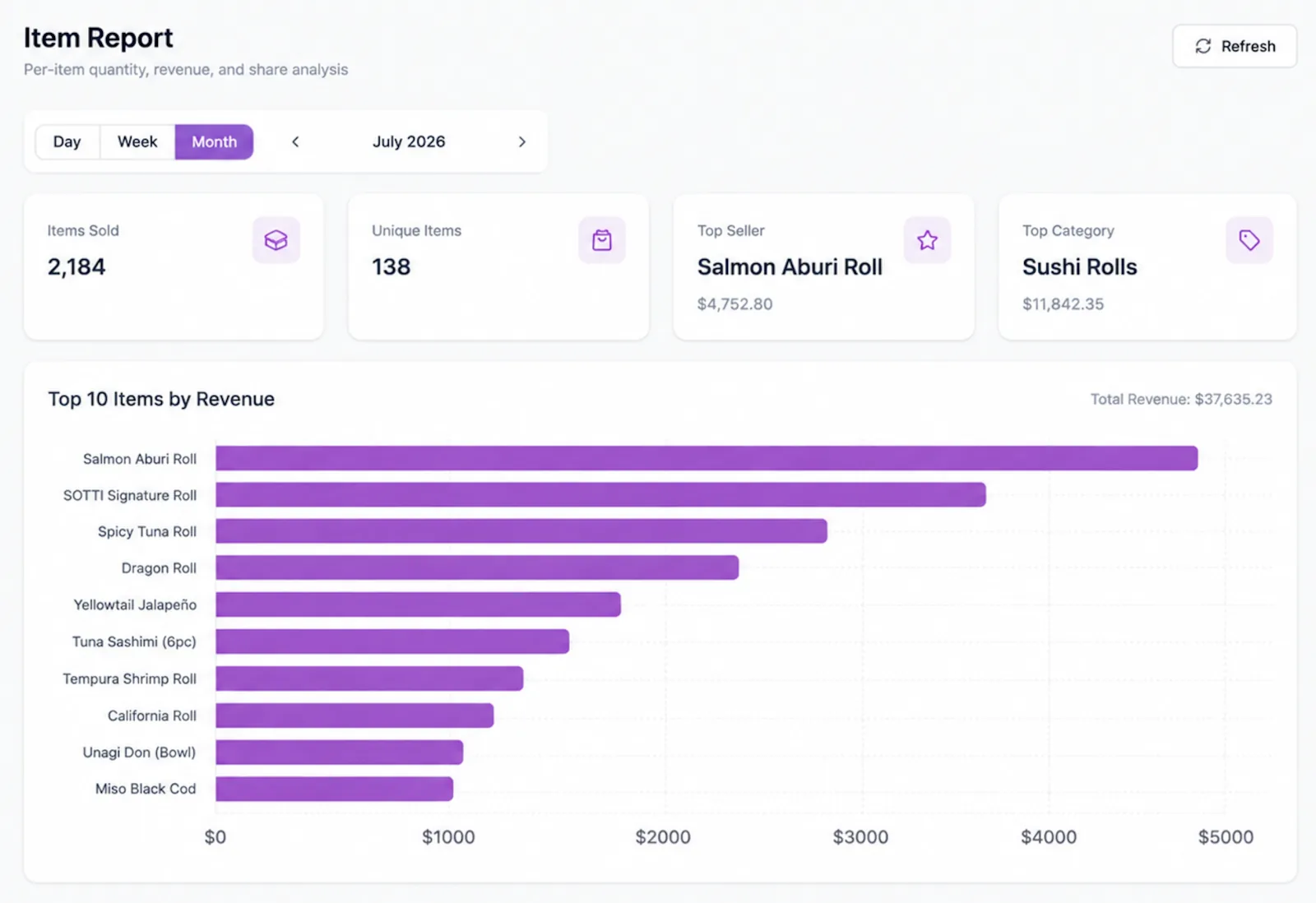
See exactly what sells
Switch between day, week and month and read quantity sold, revenue and share of sales per item. The best-selling dish, the strongest category and the top ten by revenue are laid out for you — enough to decide what to push and what to drop on numbers rather than instinct.
- Day, week and month, side by side
- Quantity, revenue and share of sales per item
- Sales and settlement reports in the same place
Several restaurants, one account
Switch store and the menu, orders and revenue switch with it. Adding a location doesn't mean a new account or a second browser window.
Each person sees only their part
Give people roles, and decide per role which screens and actions open up. POS PINs are managed here too, so who did what is on the record.
Build an option once, reuse it
Spice level, doneness, side choices — build the option group once and attach it to as many dishes as you like. Edit it once and every dish follows.
Discounts, promotions and upsells
Time-boxed discounts, promotions and the recommendations guests see before they place an order are all built here, live the moment you save.
Tables and QR codes too
Manage the floor layout and the QR codes, so the table grid your staff sees and the code your guests scan describe the same restaurant.
Photos optimise themselves
Upload a menu photo and it's resized and stored in a light format automatically — no waiting for images to appear on the tablets.
06Online menu
Online menu
Guests can read your menu before they arrive. Link it once from Google Maps and Instagram, and every menu change keeps the page current on its own — no website to build, no one to maintain it.
See the online menu page→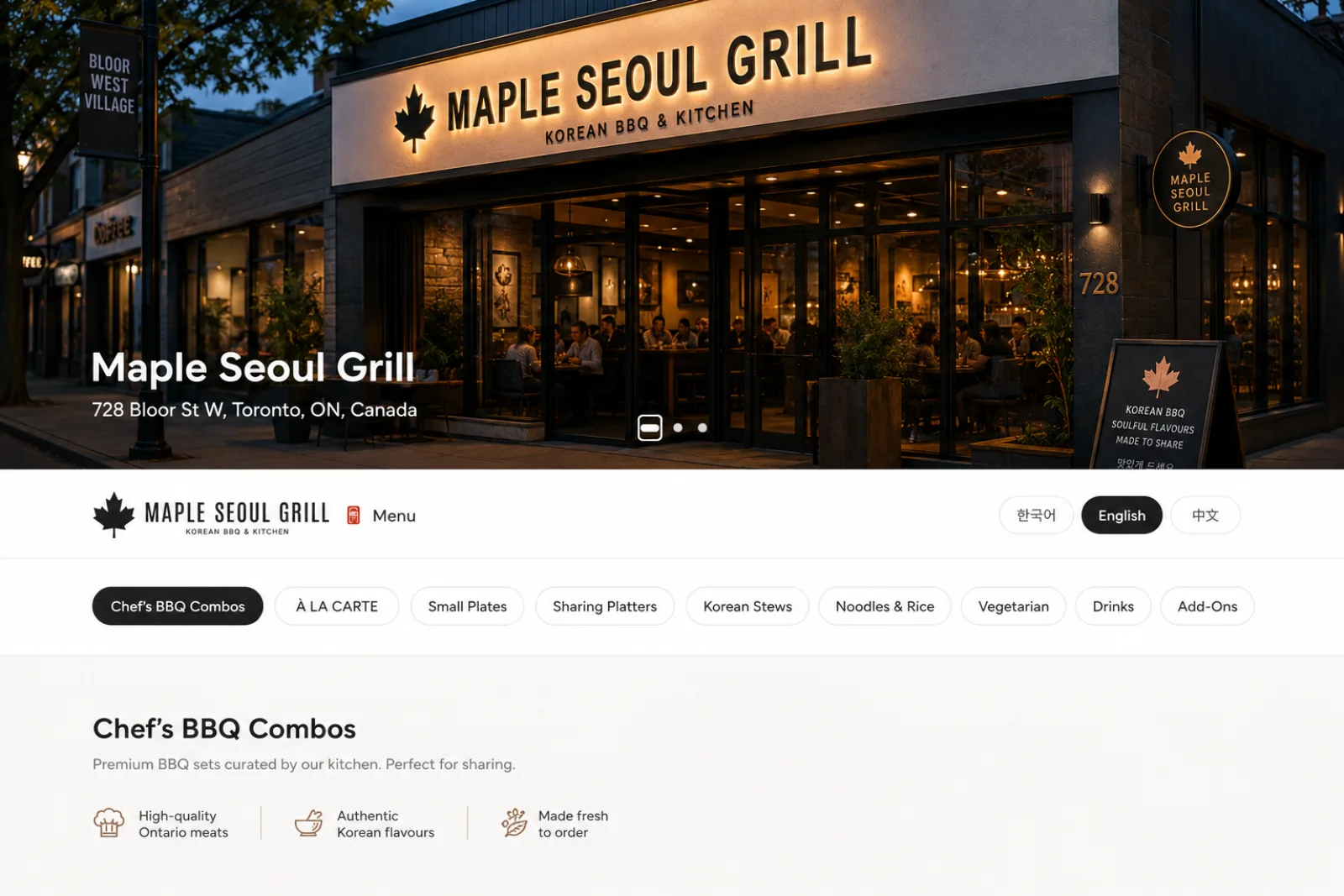
A first impression, not a price list
Put your own photos across the top and the page stops looking like a menu list and starts looking like your restaurant. Add several and guests can swipe through them; the address, phone number and hours come straight from your store settings.
- Several cover photos, swipeable
- Address, reservation line and hours filled in for you
- No web design bill, no one to keep it updated
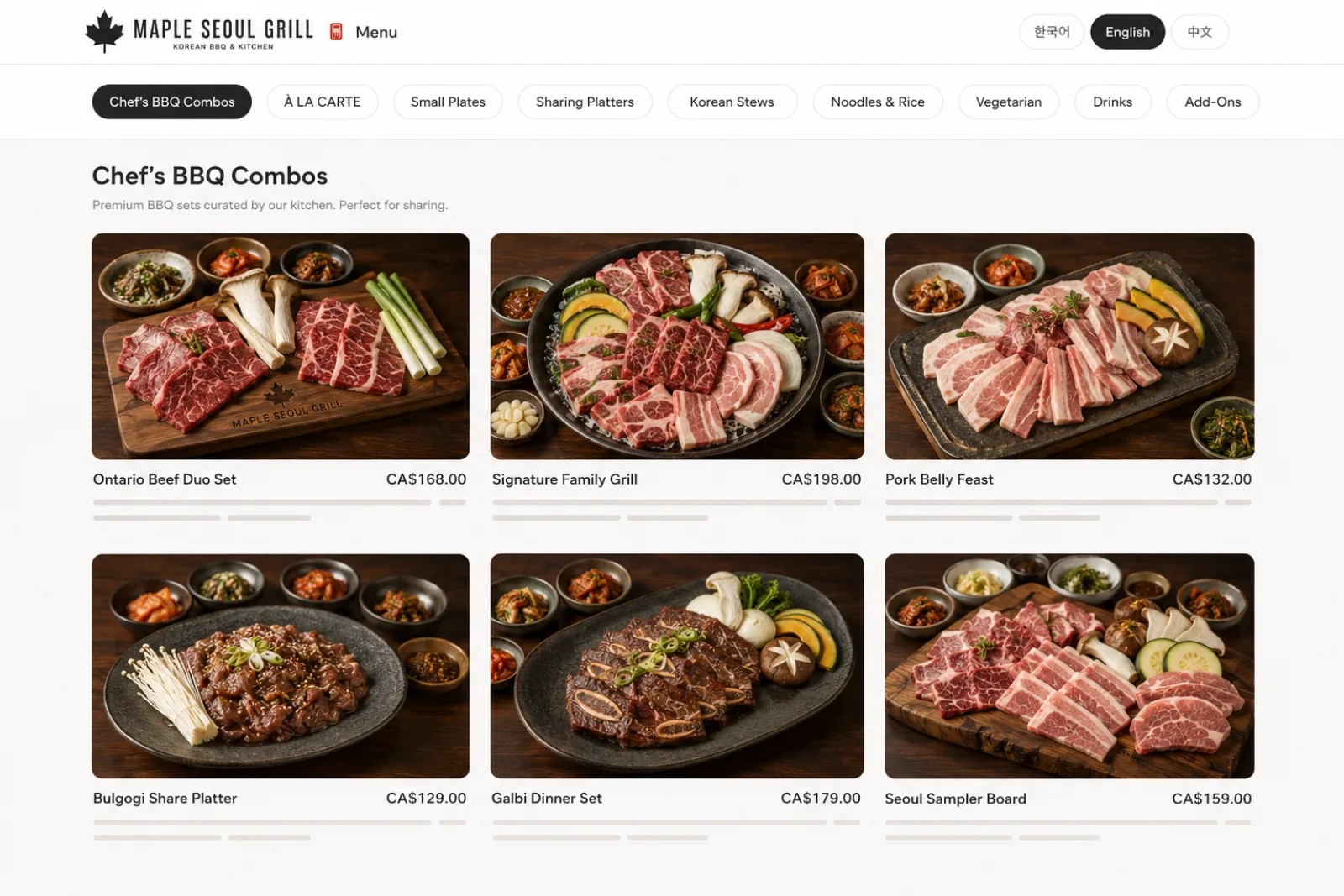
Edit the menu, the site follows
Change a price or pull a dish in Admin and the menu updates right away. Nothing to re-publish, nobody to email. Photos, options and add-on prices go out exactly as your floor sees them.
- Live the moment you save
- Photos, options and add-on pricing carried over
- Time-limited menus show when they are served
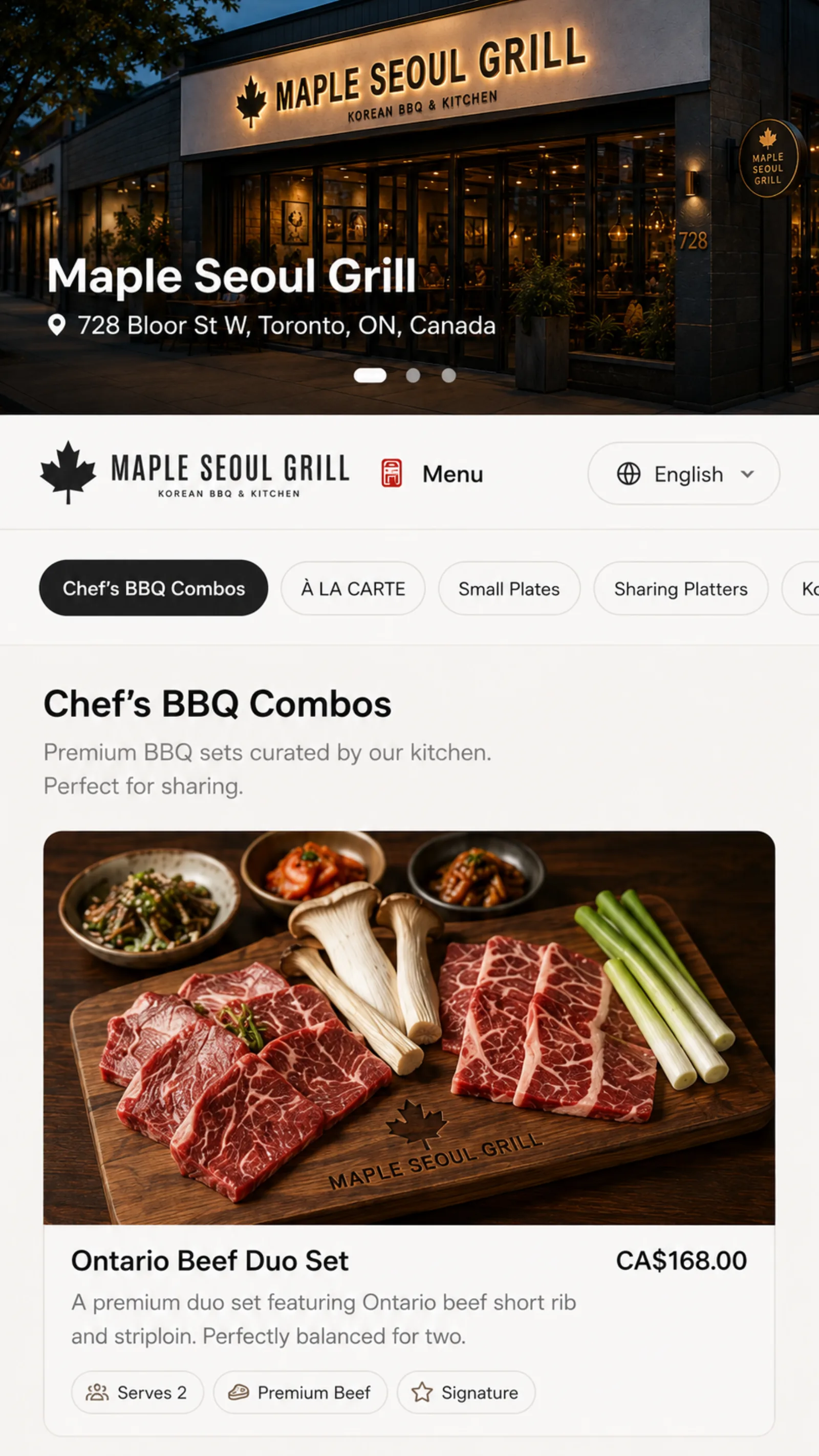
Opens in the guest's language
One link opens in the guest's own language, matched to their phone. It is indexed by Google and shows a proper preview when shared over KakaoTalk or text. Phone and desktop use the same address.
- Matches the browser's language automatically
- Drops straight into the Google Maps menu link
- Search-friendly, with link previews
One link, everywhere
Drop the address into your Google Maps menu link and Instagram profile once. From then on it keeps itself current every time you edit the menu.
Opens in the guest's language
Send the same link to guests in any of your languages and each one gets their own. They can switch on the page too.
No website bill
Nothing to build, nothing to renew each year. The menu you already maintain is the website.
Contact
See a demo tailored to your restaurant
Leave your details and we'll walk you through a setup configured for your space.